
Item settings
After uploading images, you can set a few properties for each of them independently:
- change the file name (especially important if you clone and replace an item),
- add an instruction for participants before chosen image (typed text will be displayed for each participant before this image; the limit is 1,000 characters, and a live counter shows how many you have used),
- set a follow-up survey after each image,
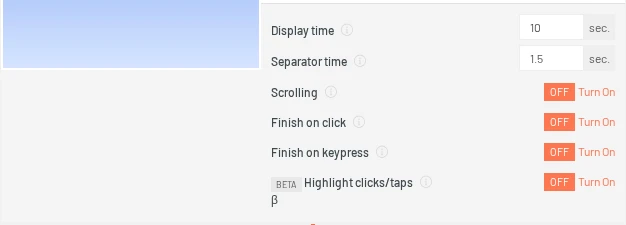
- set display time (for how long the study participant should see the image - the default value is 10 s, and the minimum is 1 s; the maximum is capped by the study time your subscription plan allows; remember, that study time is summed display time of all items),
- set separator time - the time of separator (cross) that is shown between items if the option is turned on in the study settings (you can set it from 0 to 5 seconds; the default is 1.5 sec),
- set watermark opacity (option available only on request),
- enable scroll for participants - if not enabled, then the image will fit the browser,
- select a part of the image that, when clicked by a participant, will end a display (see: Item mapping); it can be changed before running the study,
- finish item display when a participant presses any key on the keyboard,
- highlight clicks (beta option, visible only to accounts with beta access) - when enabled, the panelist sees a yellow circle where they click or tap.
NOTE: For the finish on click and the finish on keypress options, you can set a minimum display time (it shows once you set at least one of the item display finishing options). If you set this time, i.e., to 5 seconds, that means clicking/pressing a key won't work for the first 5 seconds of the item display. It can prevent skipping the item too fast by participants.
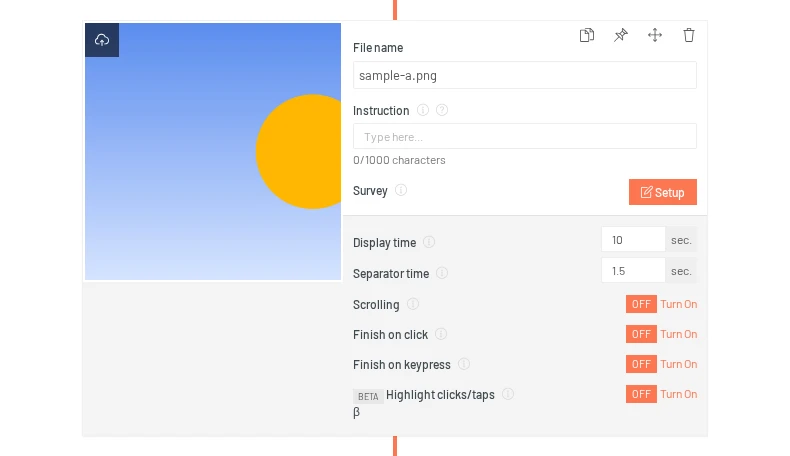
On top of each image, there are four more options available:
- clone item (with all its settings; it will be placed as the last one),
- pin the image (it will always be displayed in this particular place, even if the random order is turned on; the pin control is shown only when the item order is randomised),
- move the image to change their order,
- delete an image.
To replace the image, click the upload icon over its thumbnail:
For the video items, you can:
- change the file name,
- replace the video (click the upload icon over its thumbnail),
- add an instruction for participants before a video (limit of 1,000 characters, with a live counter),
- set a follow-up survey after each video,
- note that display time is fixed to the video length and cannot be edited,
- set a minimum display time for the finish on click and finish on keypress options,
- set separator time,
- set the watermark opacity,
- enable scroll (it's disabled for videos by default; option available in beta),
- finish item display on click,
- finish item display when a participant presses any key on the keyboard,
- enable highlight clicks (beta option, visible only to accounts with beta access).
You can also enable original video file.
NOTE: In case you run a website mockup study, item settings are a bit different. Mockup items have a name, an optional time trigger that moves to the next item, scrolling, and highlight clicks (beta). Please check this article, to learn more.
There is one more item type - Page URL. It can only be added in Embedded Website studies (and through the Screen Recording flow), not in a regular image or video study.
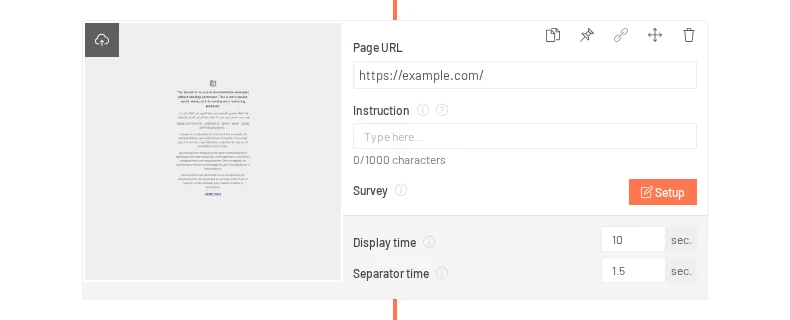
For this kind of stimuli, you can set instructions (with the same 1,000 character limit), a survey, display time, and separator time. Highlight clicks is not offered for Page URL items. You can also replace the automatically created screenshot with your own by clicking the upload icon over its thumbnail.

To learn more, read our article about the Embedded Website study type.