
Copy AOIs between Study Items
#Learn how to copy AOIs between study items in RealEye, and what to watch for when using this feature.
In RealEye, you can copy Areas of Interest (AOIs) from one study item to another (or across different studies). This is helpful when using the same visual content or layout multiple times.
Automatic (default) AOIs are created only for Shelf testing and Instagram Mockup studies. RealEye creates one AOI per placed product from the shelf spreadsheet in Shelf testing studies, and one AOI per feed post in Instagram Mockup studies. In every other study type, you create the AOIs yourself.
#Where RealEye Creates AOIs Automatically
RealEye offers six study types. Only two of them create AOIs for you, so this table shows, for every study type, whether RealEye creates the AOIs and what you do instead:
| Study type | Automatic AOIs | How you get AOIs |
|---|---|---|
| Images and Videos | No | Draw AOIs yourself, then copy and paste them between items |
| Interactive Mockup | No | Draw AOIs yourself, then copy and paste them between items |
| Instagram Mockup | Yes, one AOI per feed post | AOIs are created for you; you do not need to draw them |
| Embedded Website | No | Map the AOIs yourself on the live page with the RealEye JavaScript software development kit (SDK) |
| Screen Recording | No | Each participant gets their own recording and heatmap and RealEye does not combine the results, so there is no automatic AOI to copy across items; review each participant's recording individually |
| Shelf testing | Yes, one AOI per placed product | AOIs are created for you from the shelf spreadsheet |
#How to Copy AOIs
These steps apply to the study types where RealEye does not create AOIs automatically: Images and Videos, Interactive Mockup, and Embedded Website. Draw the AOIs on the first item, then copy and paste them onto the other items.
-
Create all required AOIs on the first item
-
Click copy AOIs to clipboard under "Select AOI..."
(Note: This will copy all AOIs from the selected item.)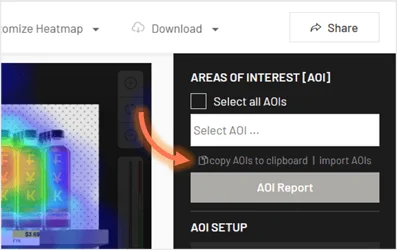
-
Open another item, on which you want to have the same AOIs
-
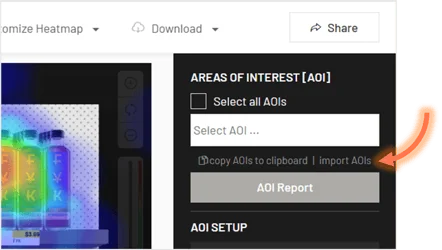
Click import AOIs.
-
Paste the copied AOI data into the text area shown and click Import to finish.
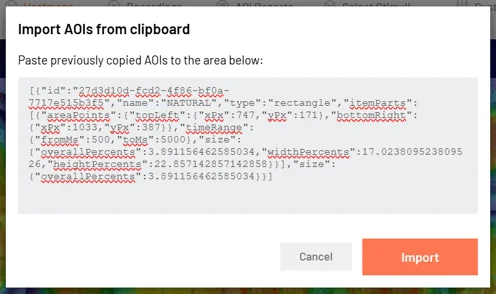
The imported AOIs will appear on the AOI list for that item.
#Copying AOIs in an Embedded Website study
In an Embedded Website study, RealEye does not create the AOIs for you: you map them yourself on the live page with the SDK using data-re-aoi-name attributes, then draw the matching AOIs in the RealEye dashboard. That is what the No in the table above means, and it is not a statement that an Embedded Website study has no AOIs. Embedded Website AOIs must be single rectangles, so polygonal and multipart AOIs are not supported for this study type. Once the AOIs exist on an item, you copy and paste them between items in the same way as any other study type.
#Important Notes
- You should only copy AOIs between items that have the same dimensions and aspect ratio.
- Check the AOI time range: AOIs must fit within the display time of the item. An AOI cannot extend beyond the item's duration.

#Need a quick walkthrough? Watch our short tutorial here:
Video not loading? Watch the AOI copy tutorial on YouTube.
#Related articles
💌 If you have any further questions, feel free to reach out to our team at support@realeye.io